Nissan Armada 2025-2026 Owner's Manual: Driving recorder system interface
Touch "
 "
on the Launch Bar to access the applications menu.
"
on the Launch Bar to access the applications menu.
Select the "Dash Cam" key to open the Nissan Armada driving recorder interface.
The "Dash Cam" shortcut can also be configured within the home screen of the Nissan Armada touchscreen display for quicker access.
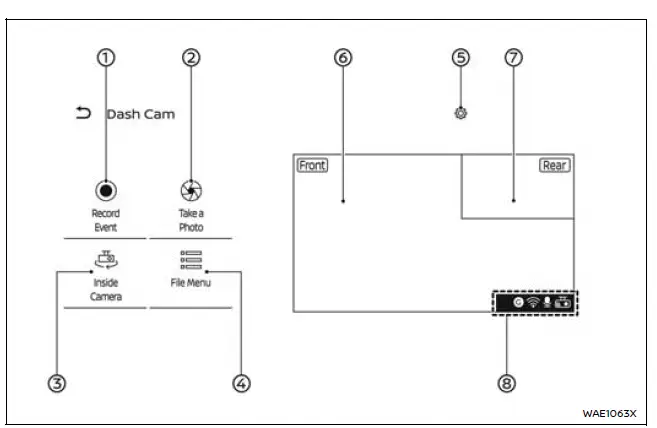
- Record Event
Touch to manually initiate recording in emergency situations within the Nissan Armada.The system automatically includes footage from approximately 10 seconds before activation and continues recording for about 25 seconds afterward.
- Take a Photo
Capture and save a still image from the current Nissan Armada camera view. - Inside Camera/Outside Camera
Switch between interior and exterior camera views for better monitoring. - File Menu
View, manage, or delete recorded files and images stored on the Nissan Armada system. -

Access the Nissan Armada driving recorder settings menu. - Camera screen (main)
Displays the live feed from the front camera of the Nissan Armada. - Camera screen (secondary)
Shows the rear camera view. Tap to swap it with the main display. - Informational icons
Indicate the operational status of the Nissan Armada driving recorder system.
NOTE:
- Displayed camera images in the Nissan Armada may have a slight delay compared to real-time conditions.
- While driving, live camera display is disabled for safety reasons. However, "Record Event" and "Take a Photo" functions remain accessible.
The Nissan Armada Record Event feature operates in two modes:
1. Manual activation
Recording begins when the driver presses the "Record Event" button on the display.
2. Automatic activation
Recording is triggered automatically by events such as collisions or unexpected impacts.
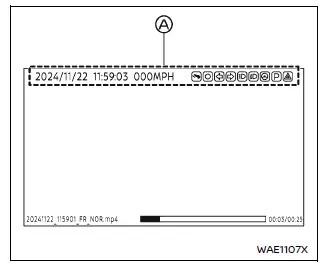
Recording playback screen (example)
- Overlay information
The Nissan Armada overlay information may include:
- Date and time stamps
- Vehicle speed data
- System function indicators
Note that overlay information is not displayed on interior camera recordings.
NOTE:
- Vehicle speed data displayed in the Nissan Armada recordings may lag slightly behind the video footage.
- There is no guarantee that recorded speed data will be accepted as legal evidence in all cases.
The Nissan Armada driving recorder interface is designed to be intuitive and user-friendly, allowing quick access to essential functions while maintaining a focus on driving safety and convenience.
 About microSD card
WARNING
Never allow children to handle or play with the microSD card used in your
Nissan Armada. Due to its small size, accidental swallowing may occur, which can
lead to choking, serious injury, ...
 Informational icons
The Nissan Armada driving recorder system uses a set of informational icons to
clearly indicate its current operating status. These icons are displayed on the
driving recorder screen and provide r ...
Other materials:
Hood Rear Weatherstrip Replacement
in
Hood Rear Weatherstrip Replacement
Callout
Component Name
1
Hood Rear Weatherstrip
Procedure
The hood rear weatherstrip is held in place with 10?€‰plastic retainers
that are part of the air inlet grille. ...
Front Fog Lamp Package Installation
Installation Instructions Part Number
95950443
d2.50.5nm(220.5nmlbin)
d2.5nm(22lbin)(220.5nmlbin)
<aiiregionsexceptgmna,southamericaandaustraia>https://sporef.gm.com/weblogic/sporef/verifygplda ...
Engine Flywheel Installation
Special Tools
EN-652 Flywheel Holder
EN-45059 Torque Angle Sensor Kit
For equivalent regional tools, refer to Special Tools.
Clean the thread in the crankshaft.
Install the crankshaft position reluctor ring (1).
Install the flywheel (2).
Install the EN-6 ...

0.0056